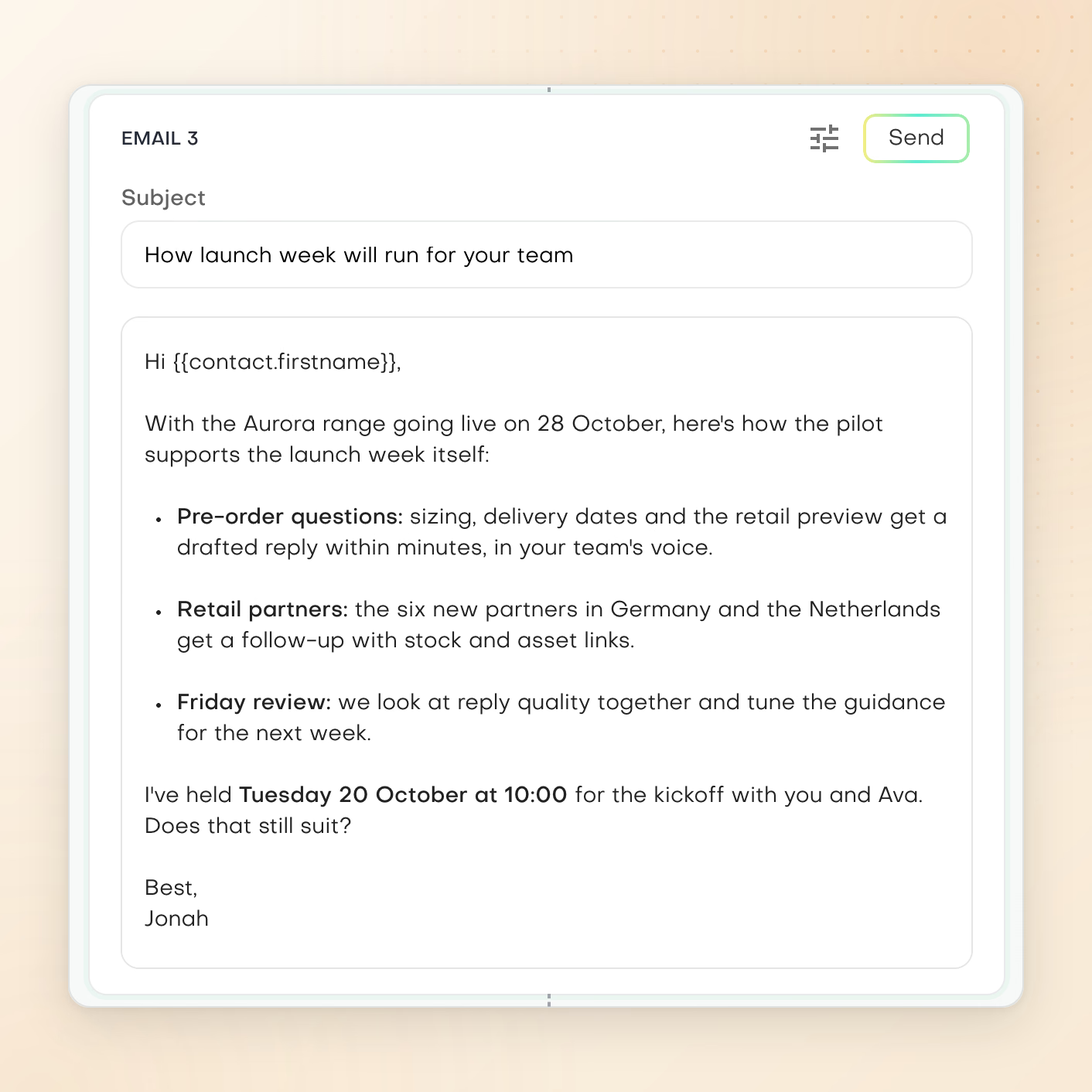
Build the campaign
Choose email or LinkedIn, then a single touch or a campaign of up to seven touches. Personalities set the voice of your drafts, and you pick one for each piece. In chat, assistants also write a new message, a reply or a follow-up.

Messages worth sending
Build email and LinkedIn campaigns with a personality for each piece, or ask an assistant for a message, reply or follow-up in chat. Save emails as drafts in your connected mailbox and review the work as a team.
What you can work on
Choose email or LinkedIn, then a single touch or a campaign of up to seven touches. Personalities set the voice of your drafts, and you pick one for each piece. In chat, assistants also write a new message, a reply or a follow-up.
With a connected Gmail or Outlook mailbox, generated emails are saved there as drafts, so sending stays in your hands. A template send delivers a template to a CRM segment through Gmail or Outlook and always asks for your approval first.
Pro users build campaigns on their own. On Team plans and above, send content for review, comment in the editor and keep an approved library, so colleagues can tell what is ready to reuse before anything goes out.
Current product view
Choose a starting point, then shape the message around your audience. Generated emails are saved as drafts in your connected Gmail or Outlook mailbox for you to send.
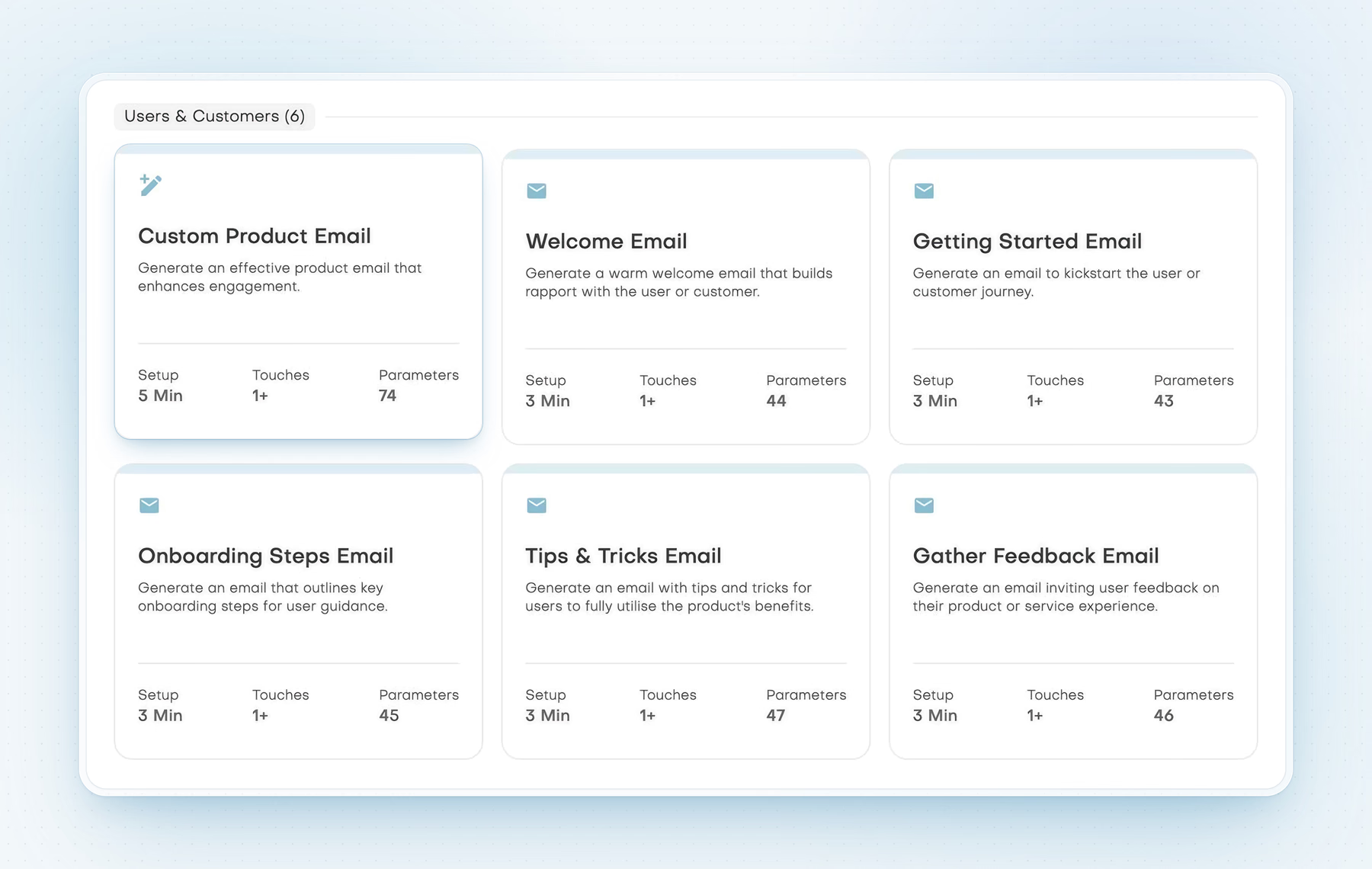
Prepare content for customer onboarding, product guidance and feedback requests, each from a ready starting point.
Scroll horizontally to inspect the full product view.
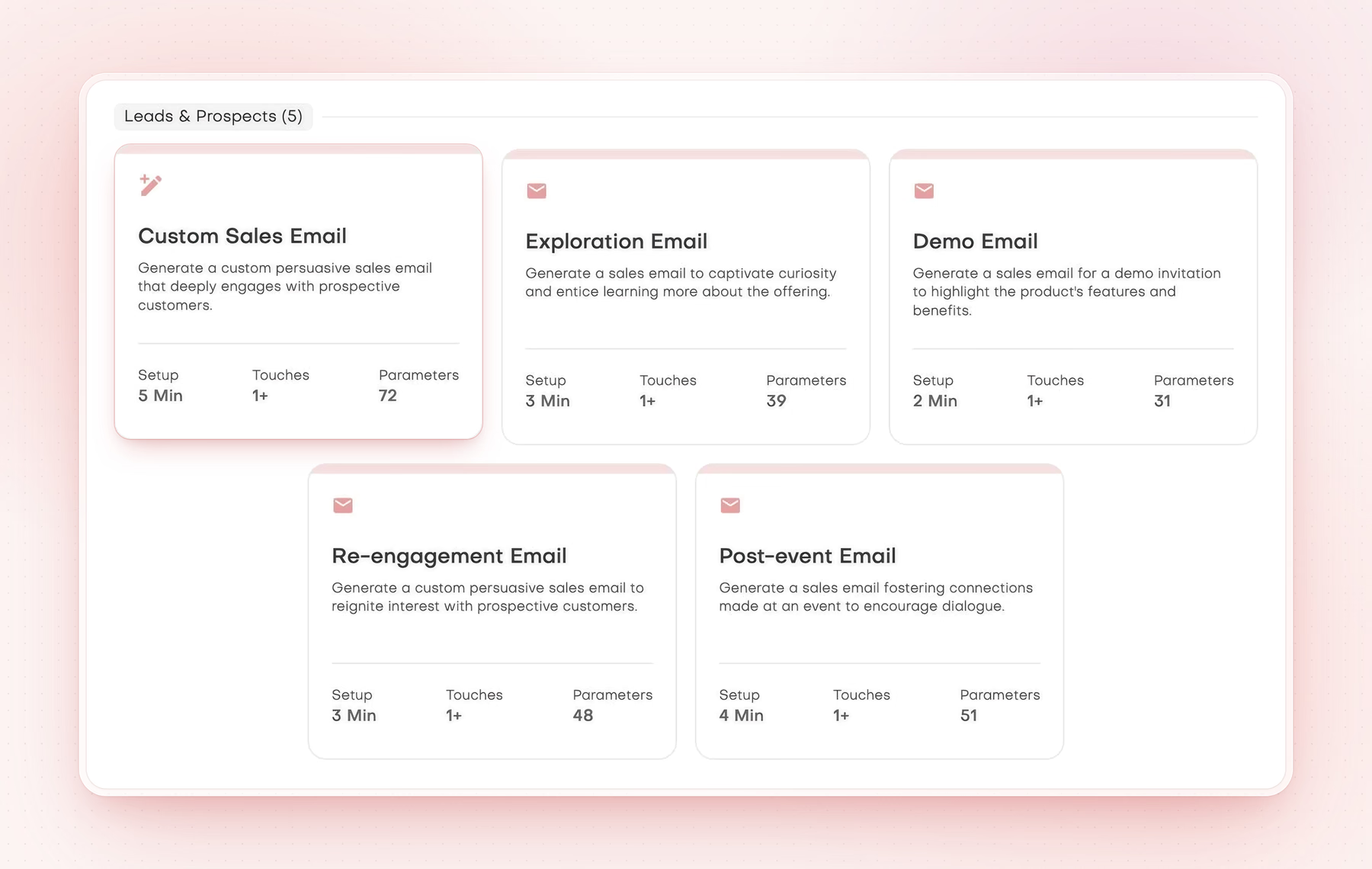
Choose a sales email starting point and refine it for the conversation you want to open, in your own voice.
Scroll horizontally to inspect the full product view.
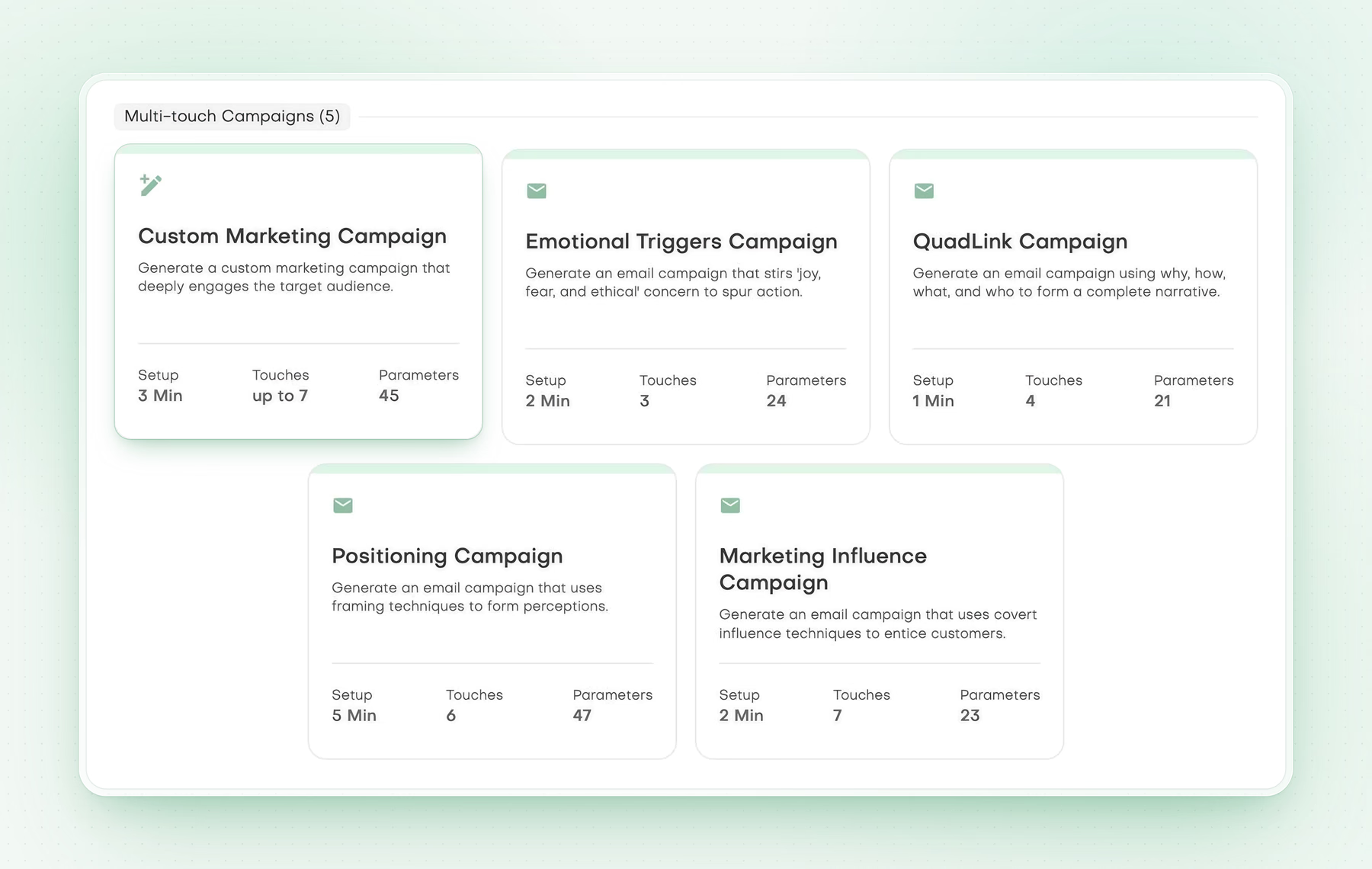
Build a series of messages around a marketing goal. Creating the content is separate from scheduling or sending it.
Scroll horizontally to inspect the full product view.
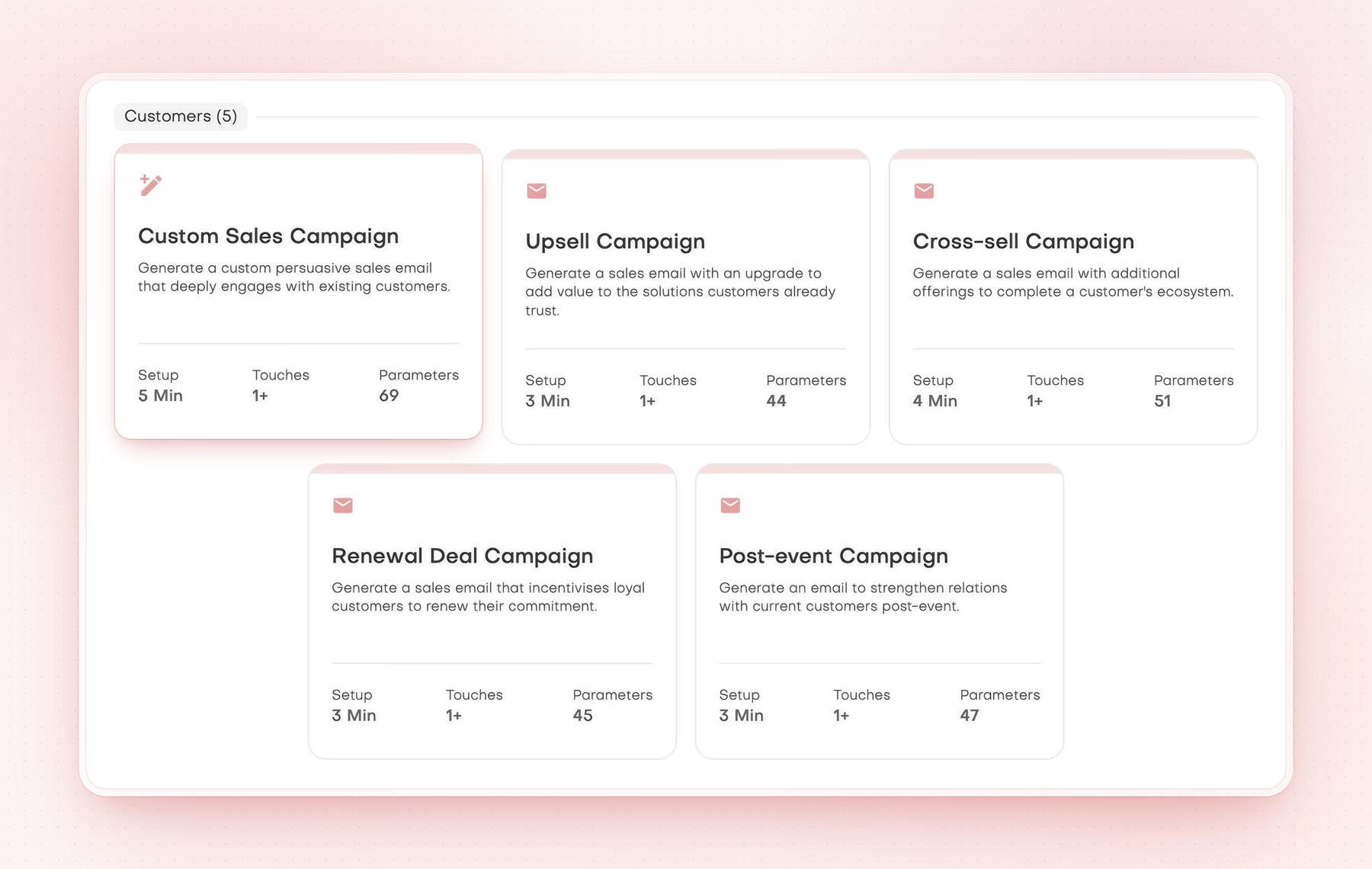
Develop multi-touch content for existing customer relationships, then review it before choosing a delivery workflow.
Scroll horizontally to inspect the full product view.
A practical starting point


Hands down the most comprehensive, science-backed outbound engine I’ve seen. Every message is precise, relevant, and built to persuade. Love it!
Clear answers
Pebbles Ai helps you write email and LinkedIn campaigns, from a single message to a series of up to seven touches. You pick a personality for each piece. In chat, the assistants also write new messages, replies and follow-ups, and check whether an incoming message is worth answering.
A personality is a saved writing voice. You create personalities that set the voice your drafts are written in, then pick one for each piece of a campaign. Your Company Intel also gives the assistants context about your business.
Yes. Ask an assistant in chat for a follow-up and share your notes from the call. It writes the message from your notes and your company context. With a connected Gmail or Outlook mailbox, the email is saved there as a draft for you to check.
Yes. Ask an assistant in chat for a new message, such as a welcome, onboarding or renewal email, and share the details. In Smartbox, Write with AI drafts a reply in the personality you pick. For a series, build a campaign of up to seven touches. Emails are saved as drafts in your connected mailbox, not sent as an automated sequence.
No. Generated emails are saved as drafts in your connected Gmail or Outlook mailbox. A template send to a CRM segment always asks for your approval first. LinkedIn messages are drafted for you to send yourself.
Yes, for email drafts. Pebbles Ai saves generated emails as drafts in a connected Gmail or Outlook mailbox. Connect it in Settings, Connections. Each person connects their own inbox, and you can add more than one.
No. Pebbles Ai writes LinkedIn messages for you to send yourself. It does not send messages or connection requests on LinkedIn for you. Socialbox will let you read and answer LinkedIn chats inside Pebbles Ai, still written and sent by you.
No. Email goes out through your own connected mailbox. Pebbles Ai does not rotate mailboxes, warm them up or offer deliverability services, which help email land in the inbox. A multi-touch campaign is prepared as drafts, not sent as an automated sequence.
Yes, a team can review outreach on Team plans and above. Colleagues can review drafts, comment and approve work before anyone uses it. On the Pro plan, one person builds campaigns on their own.
For more context, read Outreach content vs email sending tools. To see how other tools approach this work, compare outreach campaign tools.
Your next chapter
Pick a channel and a personality, draft each touch and check the drafts in your own mailbox.